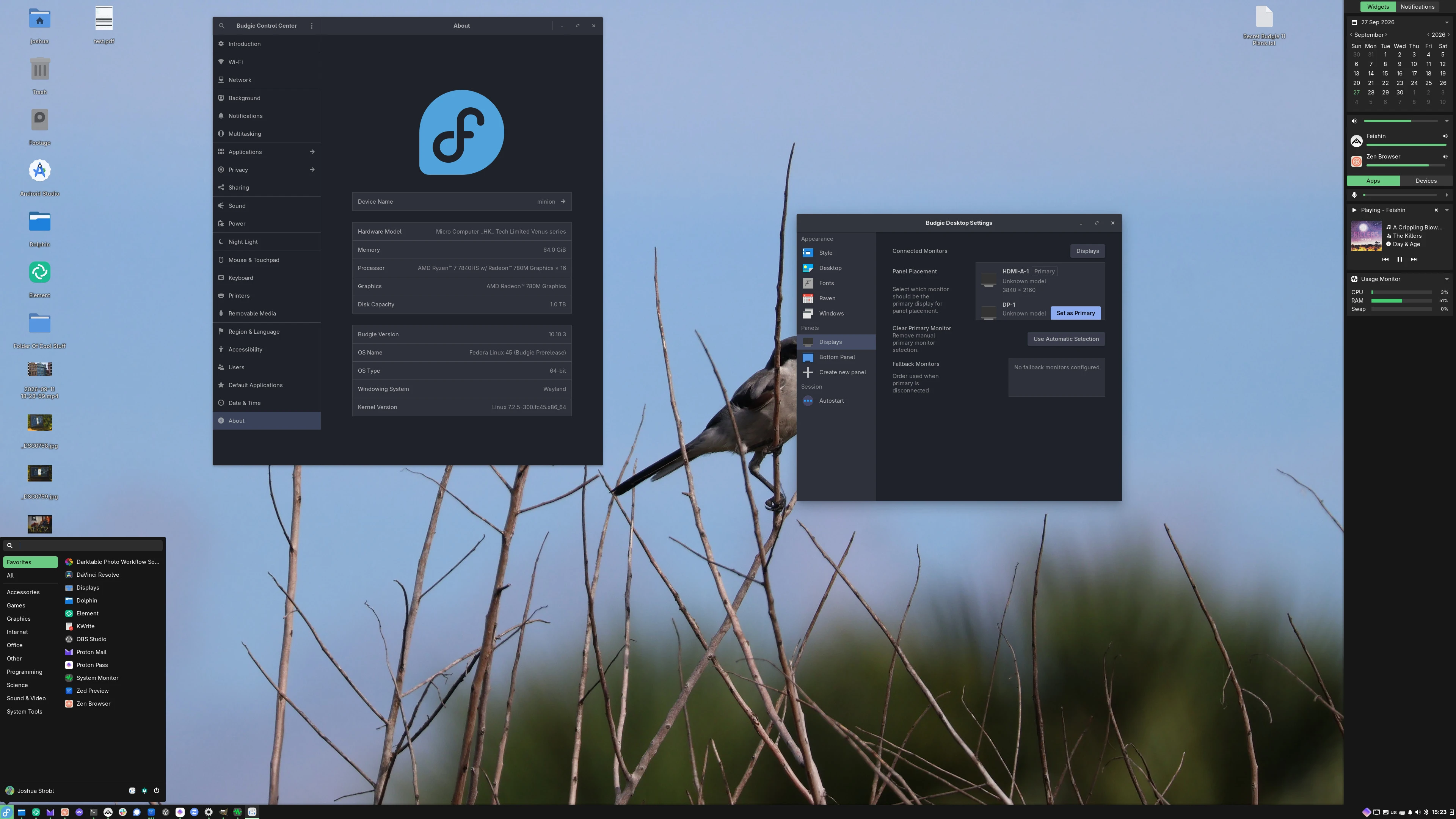
Budgie 10.10.3 is our third minor release of the Budgie 10.10 series. This release adds favorites to Budgie Menu, brings back the Keyboard Layout applet, lets you choose your primary monitor, introduces free placement of desktop icons, improves our labwc integration, and more!

September 27, 2026
#Features and Improvements
#Budgie Menu
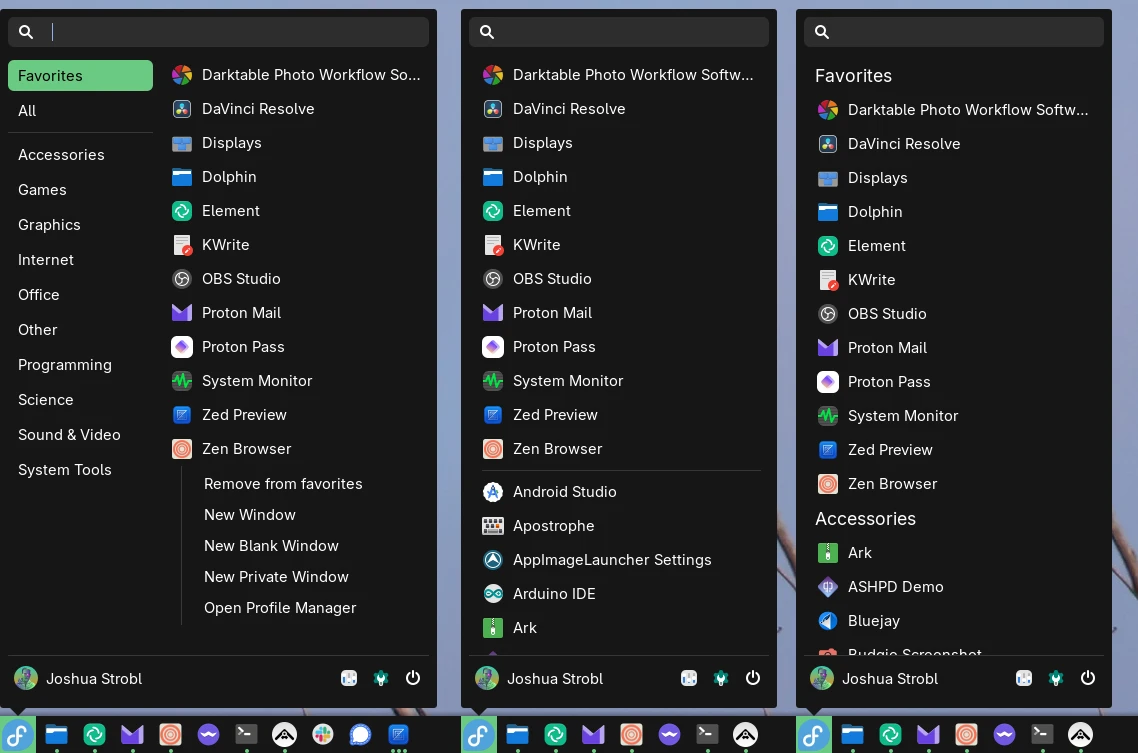
#Favorites
#Focus Fix
Since the release of Budgie 10.10, Budgie Menu and all of our applet popovers have been GtkPopovers, which greatly simplifies our positioning logic. The downside is how popovers work under Wayland. A GtkPopover is an xdg_popup, a child surface of the panel, and it only receives keyboard input while the panel itself has focus. Clicking the Budgie Menu button focused the panel, so searching worked as expected. However, opening the menu with the Super key does not involve the panel at all, and an application cannot take keyboard focus away from another window on its own. The result was the menu opening while your typing still went to the window you had open before, and even after clicking into the search field, Enter would not launch the selected app (issue #842). That certainly did not make for a great user experience! During a fun weekend project of seeing "how hard would it be to move Budgie Desktop to GTK4" (it was not; I finished it in a day, including porting over libxfce4windowing), one of the things I did was tinker with making Budgie Menu a window again, so we could restore the search input being focused. The desire was not to port every popover back to a window, as that would be an ABI break. Budgie Menu does not expose an ABI, so it could be safely moved, and most of the applets do not need that specific input focus for their popovers, so there was no incentive to incur the cost of an ABI break to facilitate it. I took the learnings from that and ported them into our budgie-desktop (GTK3) codebase, so Budgie Menu is now a proper GtkWindow again (as its own layer-shell surface), which the compositor can give keyboard focus to when it opens. Hit the Super key and start typing away!#labwc Bridge
The labwc bridge is the glue between Budgie Desktop and labwc, the recommended compositor for Budgie 10.10. It runs in the background of your session and listens for changes to what you configure: your settings from Budgie Desktop Settings and Budgie Control Center, and the system keyboard settings from locale1. It translates those into labwc's own configuration:rc.xml for things like keybinds, window focus and theming, and labwc's environment file for your keyboard layouts. When one of them changes, the bridge rewrites the relevant file and reloads labwc, so the change applies right away.
In 10.10.3, the bridge also listens to budgie-daemon, which is how the Keyboard Layout applet and the layout switching shortcuts reach labwc. We will expand on that in the Keyboard Layout Applet section later.
#Keybinds
In labwc 0.20.2, invalid entries in therc.xml file caused an error to be shown on login. These invalid entries came from our bridge writing empty keybinds (issue #956). The keybinds the bridge manages now come from a template, and only keybinds that are valid get merged into rc.xml. Existing configs are cleaned up on login, and any keybinds you added yourself are kept. A keybind can also depend on an application being installed, or on a minimum labwc version, and is left out when either is not met. Distributions can ship their own template to customize the keybinds they provide.
#Multimedia and Launcher Keys
Play, pause, next and previous keys now work out of the box, going through a new media controller in budgie-daemon that talks to your current media player (issue #916). Volume up, volume down, mute and microphone mute keys continue to go through WirePlumber'swpctl, controlling your default output and input devices.
Keys for launching a terminal, calculator, web browser, file manager or media player now work across distributions, using whichever common application is installed or your default application for that type.
#Focus Behavior
With sloppy or mouse focus, dropdown menus in some applications, such as Steam, would close as soon as you tried to click an item (issue #750). labwc 0.20 added a delay before raising a focused window, and the bridge now sets it from your auto-raise delay setting.#Show Desktop
On labwc 0.20 and newer, Show Desktop now uses labwc's own action, and existing configs are migrated to it. Older labwc versions keep using our implementation.#Config Migrations
As labwc continues to evolve (and improve!), the values we ship inrc.xml sometimes need to change too. The bridge now has a migration system for this. Each change is recorded against the rc.xml version that introduced it, and on login the bridge applies every change newer than your config's version, so even a config several releases behind catches up one step at a time. A change is only applied where the value is still the one we shipped, so anything you changed yourself is left alone. This makes it easier for us to make targeted fixes to existing configs over time.
The first use of it fixes the maximize keybinds. Through 10.10.2, we shipped right and left as the directions for maximizing horizontally and vertically, which labwc now reports as errors, since it expects horizontal or vertical (issue #985). We will now automagically fix that!
#Reliability
The bridge was reorganized into smaller parts, and a number of crashes and edge cases were fixed along the way, such as a crash on a brand new user profile and a titlebar font setting that could cause a whole config write to be lost.#Keyboard Layout Applet
You can also watch this video via PeerTube / MakerTube here. For the release of Budgie 10.10, we opted to disable the Keyboard Layout applet, as we did not wish to delay Budgie 10.10's release any further than it had been. The applet relied on IBus and X11-specific code that caused crashes under Wayland (issue #650). There was also no trivial mechanism for an application to find out which layout the compositor is using, so we knew we had to think about a good (or at least easy to reason about) solution before rushing to implement anything. As we have iterated on the Budgie 10.10 series since its release, improving our codebase as well as our integrations, we came up with a model for 10.10.3. The applet has returned, rewritten in C, and integrates with three key areas:XKB_DEFAULT_* variables in its environment file. Without something listening to locale1 on labwc's behalf, changing your layout with localectl would have no effect under labwc, so our bridge has to fill that role.
budgie-daemon acts as a "communications hub" for both the applet and compositor bridges to talk to / listen to, through a new org.buddiesofbudgie.KeyboardLayout D-Bus interface. The daemon does not apply anything itself. Rather, when you pick a layout in the applet, the applet asks the daemon to set it, and the daemon broadcasts a signal that the layout was requested. The bridge for your compositor listens for that signal and does the work.
Our labwc bridge writes the new layout to labwc's environment file and reloads labwc so it applies immediately. Switching layouts with Alt+Shift or Super+Space goes through the same path, with the daemon broadcasting a request for the next or previous layout.
To complete the round trip, the bridge watches the environment file it writes. Once the file changes, it reads back the layout that we now know is active and sets it as the daemon's CurrentLayout property. The applet listens for changes to that property and updates the label on your panel. The bridge also listens to your input sources in Budgie Control Center and to locale1. When you reorder your input sources, or run localectl set-x11-keymap with no input sources configured, the bridge rewrites that same environment file, and the applet picks up the new layout the same way.
This keeps our implementation as flexible as possible, as any other bridge can implement the same interface, such as Ubuntu Budgie's Wayfire bridge.
For our labwc bridge specifically, when the bridge works out which layouts to write, it uses the first of these that is set:
/etc/default/keyboard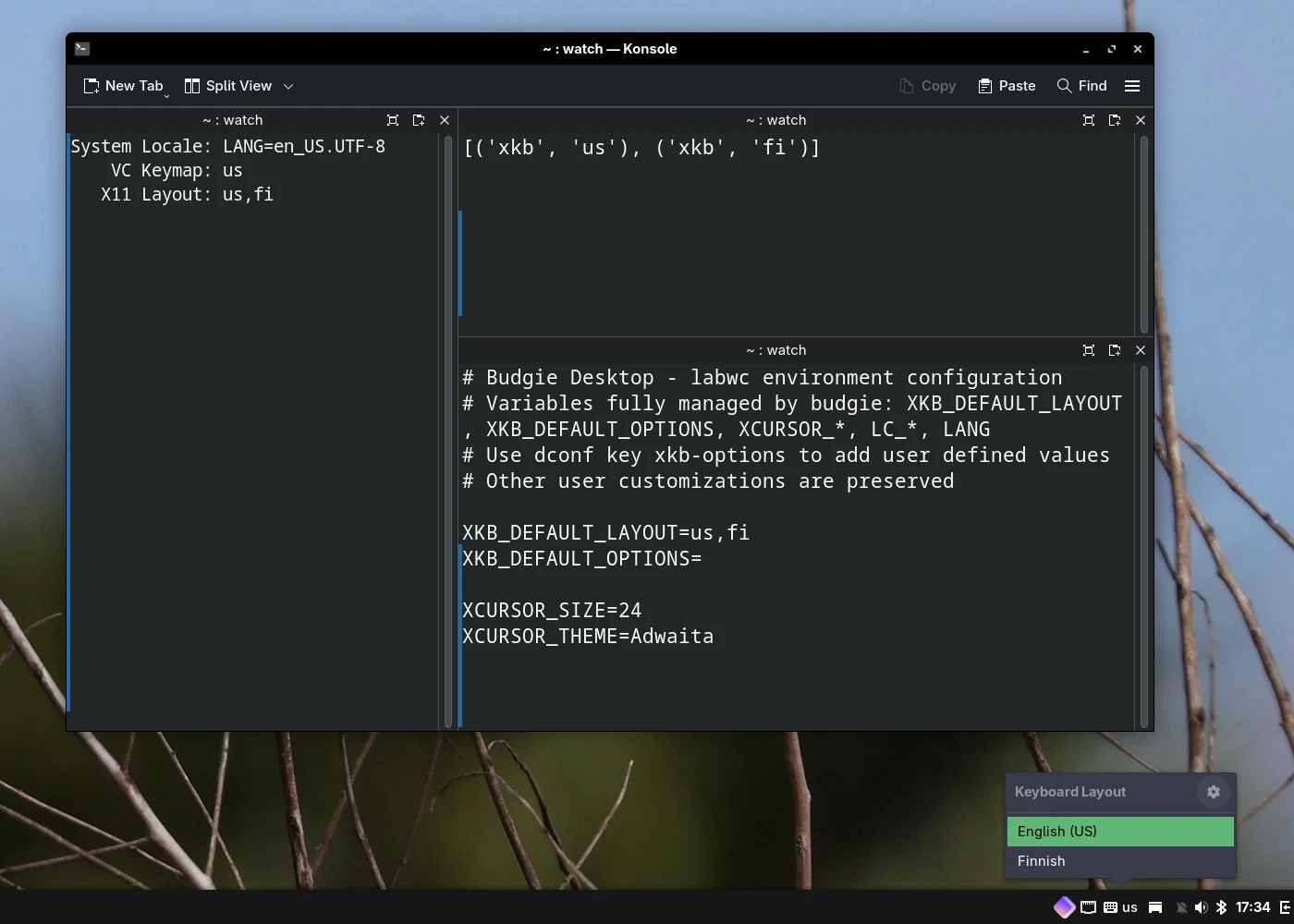
localectl, top right output of gsettings with input sources, bottom
right reading the labwc environment file./etc/default/keyboard, so it keeps locale1 running for GNOME to read the layout, but blocks every attempt to set it, even from root. That does not impact just us: on Wayland, SetX11Keyboard is how installers like Calamares change the live session's layout, so keyboard selection breaks there too (Debian bug #1118702).
#Primary Monitor
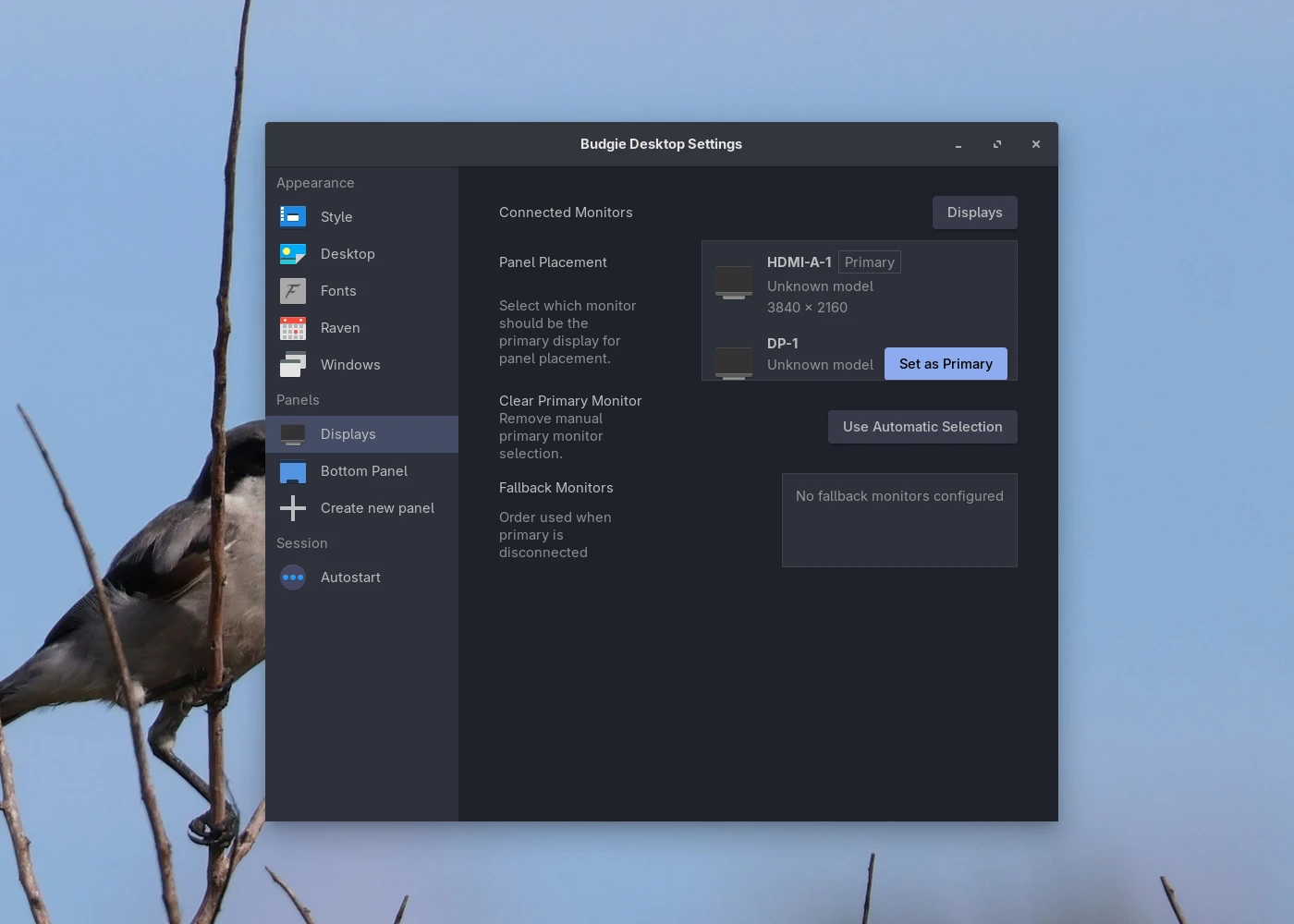
wl_output and wlr output management, have no concept of a "primary" monitor, so no compositor can tell Budgie which one it is. With 10.10.3, you can now choose it yourself.
Budgie Desktop Settings has a new Displays page, shown when you have more than one display connected. It lists your connected monitors, and you can set any of them as the primary with "Set as Primary". Your panels move to that monitor, as do things like notifications, on-screen displays, the Run dialog and the Power dialog. If you would rather let Budgie decide, "Use Automatic Selection" clears your choice. The page also has a button to open wdisplays, if you have it installed, for arranging and configuring the monitors themselves.
Budgie also remembers the monitors you have previously set as primary, as an ordered list of fallbacks, which you can see on the same page. If your primary monitor is disconnected for more than a few seconds, the panels move to the next monitor on that list that is still connected. If it comes back within those few seconds, nothing moves at all. Similarly, whenever a monitor is connected or disconnected, Budgie checks again which monitor should be the primary. When your screens are turned off after being idle, Budgie ignores monitor changes until they are turned back on, so your panels should stay where they are.
#Raven
In previous Budgie 10.10 series releases, Raven could overlap your panels, depending on your panel layout (issue #843). Raven sized itself based on the size of your panels, while the compositor centered it within the space the panels left free, and whenever the two disagreed, Raven hung over the ends. Raven now stretches between the top and bottom edges of your screen and lets the compositor work out the space around your panels, so it fits between them. Raven also closes again when you click away from it, whether into another window or onto the desktop (issue #887).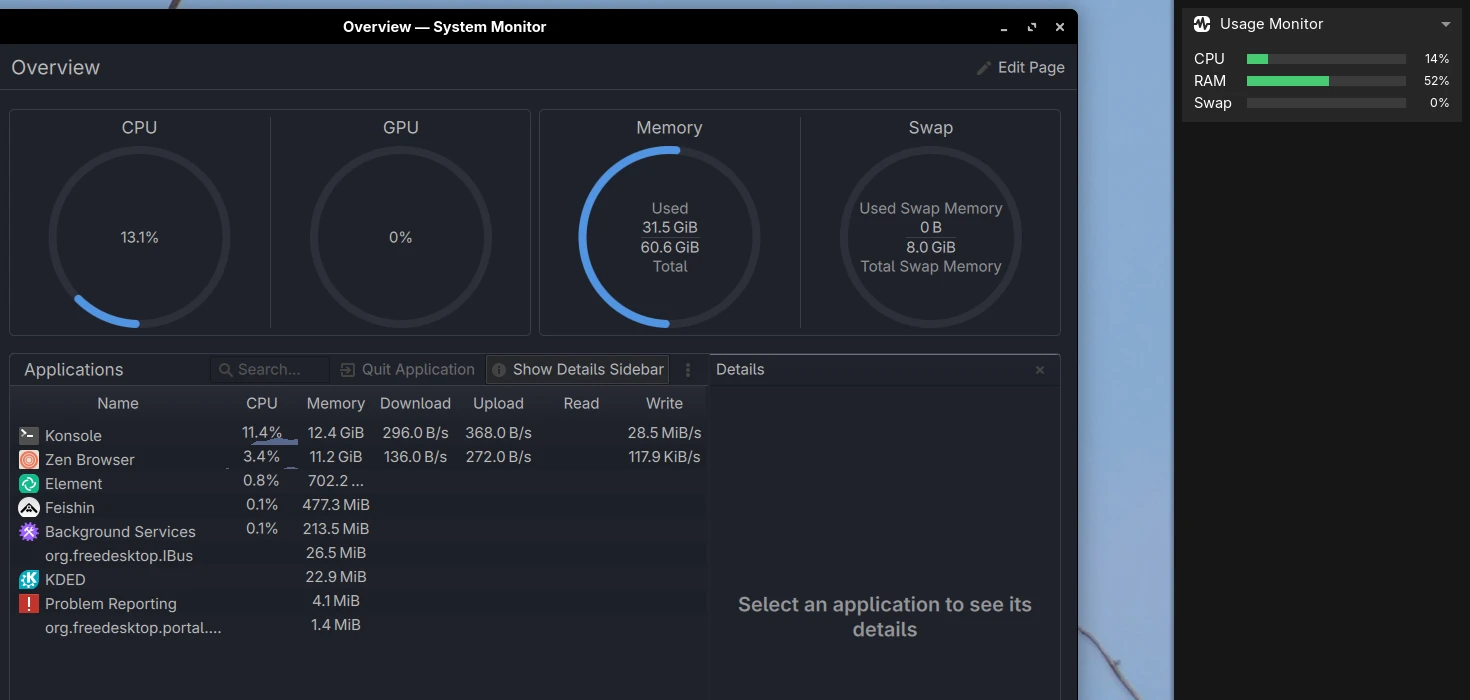
/proc, which crashed the panel on systems where those files differ, such as postmarketOS on ARM (issue #890).
#Desktop Icons
You can also watch this video via PeerTube / MakerTube here. Our desktop icons implementation, Budgie Desktop View, originated 6 years ago (November 2020), back when Budgie Desktop was under the Solus umbrella. Back in those days, we (myself included, when I was a Solus team member) held back the Nautilus file manager, as it was responsible for the desktop icons implementation, which newer versions of Nautilus had removed. In late 2020, it was decided we would finally update Nautilus; however, I did not wish for desktop icons to simply go away for users. So I implemented a view that leveraged GtkFlowBox to provide a fixed, grid-like experience. This implementation, while useful, had its limitations, most notably the lack of arbitrary desktop icon positioning. We mitigated this slightly in a more recent version of Budgie Desktop View with the ability to custom order icons, but they were still stuck in the fixed layout. With Budgie Desktop View 10.10.3, you can now finally freely place desktop icons anywhere on the desktop.#Placement and Layouts
Icons are placed on a grid based on your icon size, which you can now change with Ctrl+scroll. Positions are stored in grid cells, so your layout scales when you change icon size, and renamed files keep their spot. Budgie keeps a separate layout for each grid size, so returning to a resolution restores that layout exactly. A resolution you have not used before gets a layout based on the closest one you have, with icons keeping their distance from the nearest edges, so a Trash in the bottom-right corner stays in the bottom-right corner. A layout created for a new resolution is not saved until you move an icon, so a resolution you only use briefly does not leave a saved layout behind. If you are upgrading and had a custom icon order, it is imported the first time you log in, with Auto-arrange turned off so your order is kept.#Selecting
You can now drag from an empty part of the desktop to select icons. To add to an existing selection, hold Ctrl or Shift while you click an icon or start a new drag. From the keyboard, Ctrl+A selects everything, arrow keys move between icons, and Shift+arrow adds to your selection.#Arranging
The desktop's right-click menu has new Auto-arrange, Snap to Grid, Align to Grid and Sort By options:#Moving Files
Dragging a selection onto Trash moves its files to the trash, with Trash highlighted in red while you are over it. Dragging it onto a folder, including Home, moves its files into that folder, with the folder highlighted in your selection color. If the folder already has a file with the same name, the moved file gets " (Copy)" added to its name, so nothing is overwritten. Files you drop onto the desktop from other applications land where you drop them.#Thumbnails
Thumbnails now follow the freedesktop thumbnail specification, which means Budgie Desktop View shares a thumbnail cache with your file manager and other applications. If a file already has a thumbnail in that cache, it is used as-is. Otherwise, Budgie Desktop View generates one with the thumbnailers you have installed, such as glycin-thumbnailer for images or ffmpegthumbnailer for videos, and saves it to the cache for other applications to use. Loading images no longer blocks the desktop, so the default size limit for image thumbnails goes from 10 MB to 25 MB. We learned a lot from this overhaul. In the future, we intend to apply those lessons to a generic, desktop-agnostic Qt implementation. More on that another time :)#Other
#oo7 Secret Service Support
Fedora 45 is switching its default Secret Service provider, which stores things like your saved passwords and application tokens, from GNOME Keyring and KWallet to oo7 (Fedora Change Proposal). Existing GNOME Keyring data is migrated to oo7 automatically. Budgie Desktop 10.10.3 adds opt-in support for oo7, which distributions can enable when building Budgie Desktop. With it enabled, Budgie Desktop starts oo7's daemon when your session starts, and routes the Secret portal used by sandboxed applications, such as Flatpaks, to oo7. It is off by default, so distributions still using GNOME Keyring are not affected.#Translations
The Trash applet and the names of all 19 of our panel applets can now be translated (pull request #986). Thank you to all of our translators for their updates in this release!#Bug Fixes
As always, this release squashes a number of bugs across the desktop:/bin/sh, so it no longer needs bash.#Packaging Changes
#Budgie Desktop Dependencies
Budgie Desktop 10.10.3 adds a dependency on libgtop, which the Raven usage monitor now uses. It drops libwnck, IBus and intltool. Translation extraction now goes through Meson instead. When built with runtime dependency checks enabled, Budgie Desktop now also checks for the Python modules the labwc bridge needs: dbus-python, PyGObject and psutil, along with the Gio, GLib and Pango typelibs. python-systemd is now optional. Without it, the bridge simply logs to stdout.#New Build Options
with-oo7 (off by default) and oo7-libexecdir enable the oo7 Secret Service support covered above. With runtime dependency checks enabled, oo7-daemon and oo7-portal are required.gsd-components and gsd-components-excluded let you choose which gnome-settings-daemon components are started with the session, since not every distribution ships all of them. For example, gsd-disk-utility-notify needs GNOME Disks.budgie-session-libexecdir sets where budgie-session's executables are installed, if that differs from gnome-settings-daemon's.xdp-libexecdir sets where the xdg-desktop-portal executables are installed, for distributions that use per-package libexecdirs.#labwc Keybinds
The keybinds the labwc bridge manages now come fromkeybinds.xml.example. Distributions can optionally ship their own keybinds.xml alongside it to customize the default keybinds.
#Budgie Desktop View
Budgie Desktop View 10.10.3 should be shipped alongside Budgie Desktop 10.10.3. It no longer closes Raven itself, since Budgie Desktop now does, so with an older Budgie Desktop, clicking the desktop will not close Raven. The minimum GLib version goes from 2.64 to 2.72. glycin-thumbnailer and ffmpegthumbnailer are optional, and used for thumbnails when installed.#Budgie Desktop Services
Budgie Desktop Services 1.0.3 should be shipped alongside Budgie Desktop 10.10.3. It has added some guards in our output management system around metahead that should improve suspend-resume behavior.#budgie-extras and Pocillo
Ubuntu Budgie has released a new version of budgie-extras alongside our release of Budgie Desktop 10.10.3. Pocillo also received an update that adds compatibility for the changes to Budgie Menu. If you package either of them, be sure to update them along with Budgie Desktop.#Contributor List
Budgie Desktop is developed by Buddies of Budgie, with contributors around the world. Alongside all of our amazing translators, here is a list of all the contributors that made this release possible: Thank you as well to everyone who reported issues, tested fixes, and helped us track down bugs during this release cycle!#Release Stats
Leaving out translations and build system changes, here is how much changed since 10.10.2:Did you know that you can financially support the Buddies of Budgie project? Buddies of Budgie was founded to provide a home for Budgie Desktop and your financial contribution can go a long way to supporting our goals for development, providing opportunities for financial compensation, leveraging no-compromise Continuous Integration and Continuous Delivery systems for Budgie 11 development, and more.